How to Add a Sales Popup to Your Shopify Store
Learn how to add a brand-matched sales popup to your Shopify store in under 2 minutes — no designers, no code, no agencies.
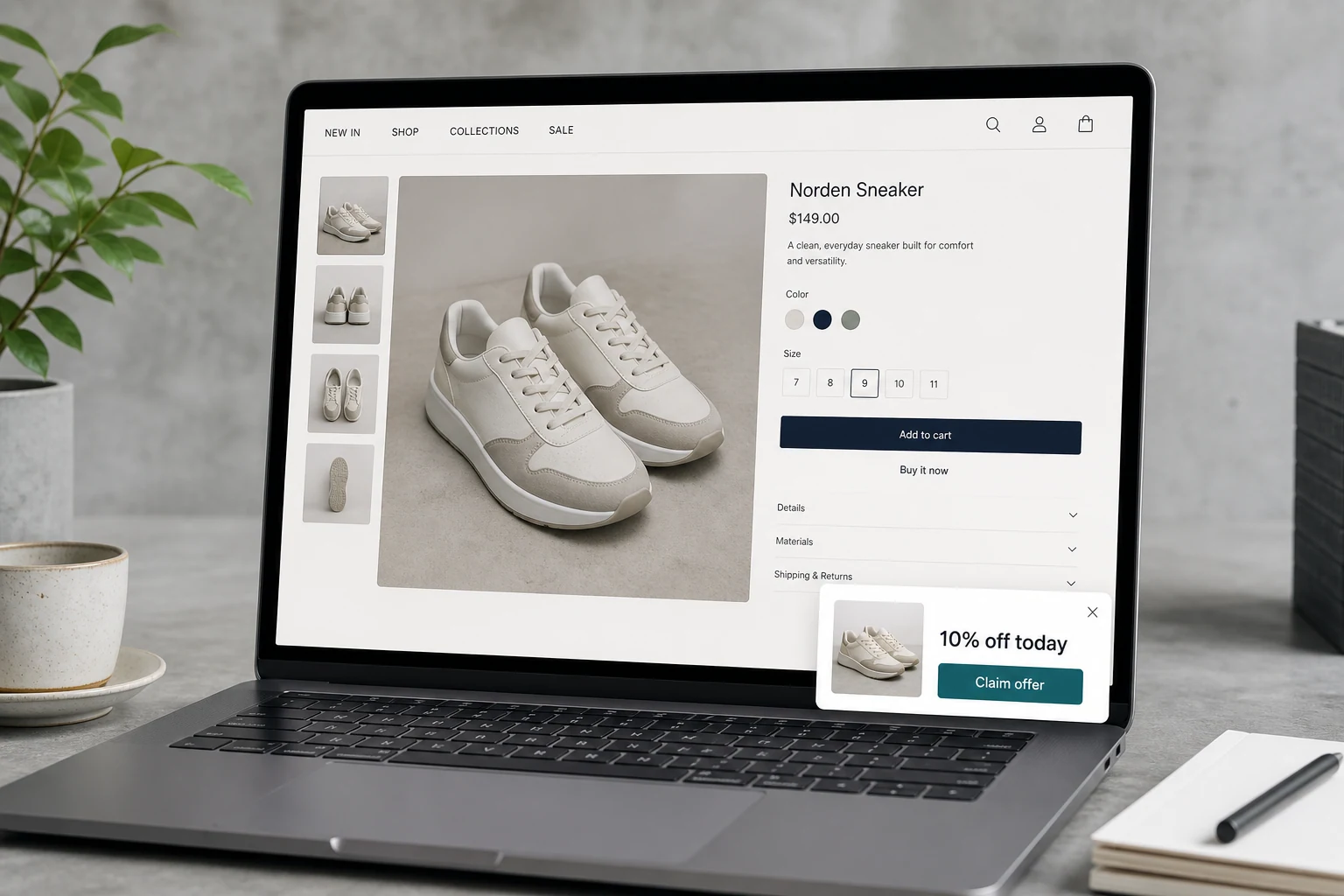
Why most Shopify popups feel generic
Most popup tools give you a blank canvas — a generic template with a discount percentage and a subscribe button. They have no idea what your store sells, what your brand looks like, or what your customers actually want. The result is a popup that feels out of place and gets closed immediately.
The problem is not popups. The problem is generic popups. A popup that matches your brand, promotes a real product, and appears at the right moment converts. A generic one just annoys.
How AI generates popups that match your Shopify store
Leadfication reads your Shopify store — your colors, fonts, product images, and page content — and generates popups that feel native to your brand. You do not upload anything, adjust colors manually, or write copy from scratch. The AI does all of that automatically.
Here is what the process looks like:
Paste your Shopify store URL — the AI scans your site in seconds
Pick your goal — boost sales, capture leads, drive WhatsApp or phone contact
AI generates 2–3 popup suggestions — each with your brand colors, fonts, and real product images pulled from your store
Edit or publish as is — make changes inline or go live immediately
What makes a good Shopify sales popup
Before publishing any popup, it helps to understand what actually works. These are the elements that separate high-converting popups from the ones visitors ignore:
A real product image — not a stock photo, not a generic graphic. The actual product your visitor is likely interested in.
Brand-matched colors and fonts — a popup that looks like it belongs to your store, not like it was inserted from another platform.
A specific, clear CTA — "See Men's Collection" converts better than "Click here" or "Shop now".
Smart timing — showing after a few seconds or on exit intent, not the moment someone lands on your page.
Mobile-optimized layout — more than half of Shopify traffic comes from mobile. Your popup needs to look good on a small screen.
Popup targeting: show the right popup on the right page
One of the most underused features in popup tools is page-level targeting. Instead of showing the same popup on every page, you can show different popups based on where the visitor is:
Homepage — introduce your best-selling collection or a seasonal offer
Product pages — promote related products or highlight a key benefit
Cart page — recover abandoning visitors with a last-minute offer
Blog posts — capture leads or grow your email list
Leadfication lets you generate a popup for any specific page in your store — not just the homepage. You can search your store pages directly from the dashboard and generate a targeted popup for each one.
How to install the popup on your Shopify store
Once your popup is ready, installation takes one step. Leadfication gives you a single line of code to paste in your Shopify theme — no app install, no Shopify app store required. Paste it once and all your popups go live automatically.
It works on Shopify, WooCommerce, Wix, WordPress, and any website that allows custom code in the header.
Track performance from the dashboard
After your popup is live, Leadfication tracks views, clicks, and CTR automatically. You can also connect Google Analytics to track conversions as part of your existing reporting setup.
Start with one popup, measure the results, and iterate. Most stores see meaningful engagement within the first few days of going live.
Ready to add your first AI popup?
14-day free trial. No credit card required. Live in 2 minutes.